One of QuickBooks Desktop key features is the bank reconciliation process, which ensures that the transactions recorded in QuickBooks match those reflected in bank statements or credit card accounts. While carrying out banking tasks, users can occasionally run into bank reconciliation errors. If you want to have a better grasp of how to troubleshoot common QuickBooks bank reconciliation problems, make sure to read this blog thoroughly.
Occasionally, disruptions in QuickBooks bank reconciliation may arise, highlighting the importance of addressing and resolving these issues promptly. Regular reconciliation helps verify the accuracy of accounting records, making it a crucial task for businesses. While creating reconciliation statements, users are required to match all the entries present in income and expense accounts with the transactions present on their bank statements. Most Chief Financial Officers (CFOs) agree that bank reconciliation statements can substantially help their organization in maintaining top-notch accuracy. They can be a lot beneficial in identifying cases of fraud.
QuickBooks bank reconciliation problems can occur when the accounts in QuickBooks Desktop don’t match the bank statements at the end of the reconciliation process. Several factors can contribute to these errors:
Further, bank reconciliation statements also help organizations in adjusting different types of income and expenses such as interest earned or paid. By performing the steps given below, you can troubleshoot the QuickBooks bank reconciliation problems. Make sure that you read the steps carefully and follow them step by step…
Begin by checking the opening and balances ensuring that all the information entered is correct.


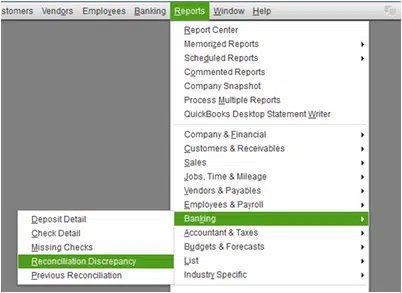
QuickBooks provides various reports to inform users of any changes or alterations made, such as additions or deletions. One of these reports is the reconciliation discrepancy report which confirms any transactions that have changed since the last reconciliation.
Here are the steps to run the report:
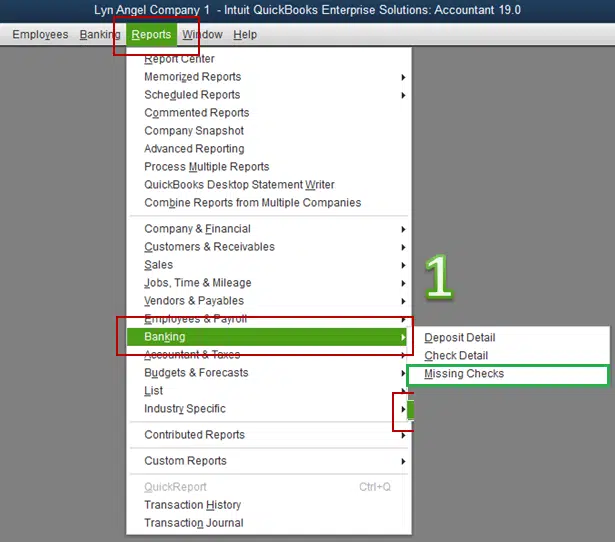
A. To run the missing check report, follow these steps
The missing report will show you whether you have any missing checks.
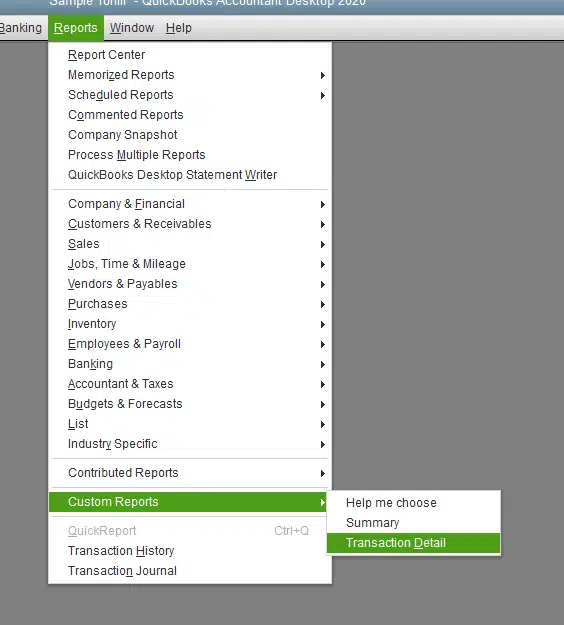
B- How to Run a Transaction Detail Report?
In some cases, you may need to forcefully reconcile your QuickBooks Online account to match your bank records. To do this, you’ll need to look for the reconciliation adjustment. Here are the steps:
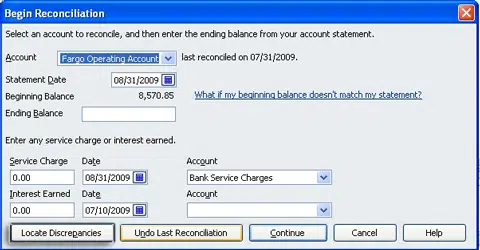
If you see any adjustments that are making the account balance incorrect, you should contact the person who made the changes to the adjustment.
When all discrepancies have been resolved, you can finalize the reconciliation process. On the other hand, if you are unable to identify any discrepancies in your accounts, you may need to reverse the previous reconciliation until the opening balance is accurate.
This blog provides clear and concise steps to troubleshoot QuickBooks bank reconciliation problems. Our goal is to help you eliminate all reconciliation errors, but if you have any questions, comments, or concerns, please don’t hesitate to contact us. Our team of highly skilled accounting experts, based in the US, is dedicated to providing your business with the support it needs to eliminate accounting-related glitches and errors. By taking advantage of our QuickBooks support services, you can leverage the latest advancements in accounting technology and practices.
Missing transactions in QuickBooks: This can occur due to various reasons, such as manual entry errors or integration issues with online banking.
Bank-related discrepancies: These can arise from bank statement errors, incorrect check sequencing, or uncleared checks.
Reconciling to the wrong statement date: Using an incorrect statement date for reconciliation can lead to inaccurate results.
Bank fees not being recorded: Omission of bank fees can result in discrepancies between QuickBooks records and bank statements.
Existence of duplicate transactions in QuickBooks: Duplicate transactions can cause an overstatement of income or expenses.
Technical issues when recording credits or debits: Software glitches or incorrect data entry can lead to incorrect recording of credits or debits.
When you encounter bank errors during reconciliation in QuickBooks, follow these steps.
Verify the Bank Statement:
● Double-check the bank statement for any inaccuracies.
● Make sure the transactions match the information recorded in QuickBooks.
Contact the Bank:
● Reach out to your bank to confirm if there is a back-end server maintenance issue causing the error.
Make QuickBooks Adjustments:
● Perform necessary adjustments or corrections in QuickBooks to align with the bank statement.

