QuickBooks by Intuit is a highly trusted accounting solution. Businesses rely on it because it is secure, accurate, and dependable. When software delivers in those three areas, many users overlook a slightly higher price.
Still, no software is perfect. One common issue is QuickBooks Error 3371: “Could not initialize license properties” (or “Could not load license data”). When this error appears, your ability to open or use QuickBooks may be blocked. In this article, we’ll explore the causes of this error and walk you through potential fixes.
What Is QuickBooks Error 3371?
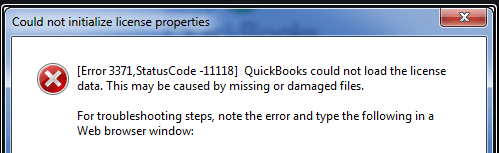
QuickBooks Desktop Error 3371 occurs when the software cannot load the necessary license data. The message might read: “Could not initialize license properties. Error 3371: QuickBooks could not load the license data. This may be caused by missing or damaged files.”
This error usually prevents you from opening the company file or activating QuickBooks.
Troubleshoot QuickBooks Error 3371: Could Not Initialize License Properties
Here are proven solutions to restore your QuickBooks access:
Solution 1: Install Windows Updates
- Press Windows key + X, or right‑click the Start button, and select Windows PowerShell (Admin)
- In PowerShell, type
cmd and press Enter - Enter the command:
wuauclt.exe /updatenow - Let it run for at least an hour to fetch and apply updates
- Restart your computer and try opening QuickBooks
Often, missing updates are the root cause of licensing errors.
Solution 2: Clean Install QuickBooks
If a normal reinstall fails, use a clean install:
- Log in as an administrator.
- Backup your QuickBooks data.
- Uninstall QuickBooks (via Control Panel → Programs).
- Restart your machine.
- Rename these folders so QuickBooks doesn’t use old files (add “.old” to their names):
C:\ProgramData\Intuit\QuickBooks (year)C:\Users\{username}\AppData\Local\Intuit\QuickBooks (year)C:\Program Files\Intuit\QuickBooks (year)- On 64‑bit Windows:
C:\Program Files (x86)\Intuit\QuickBooks (year)
- Reinstall QuickBooks from your installation media or downloaded setup.
- Register your product with your license information when prompted.
If “Access Denied” prevents folder renaming, use Task Manager to kill lingering QuickBooks processes (e.g., QBW32.EXE).
Solution 3: Rebuild the EntitlementDataStore.ecml File
This file houses your license information. If corrupted, QuickBooks cannot validate your license.
- Close QuickBooks and all related processes (via Task Manager).
- Press Windows + R, then enter:
C:\ProgramData\Intuit\Entitlement Client\v8 (or v6, depending on your version) - Delete the
EntitlementDataStore.ecml file (but keep your backup). - Relaunch QuickBooks and re-register using your license details.
This often forces QuickBooks to recreate a fresh, valid license file.
Solution 4: Use the QuickBooks Install Diagnostic Tool
This tool can automatically detect and repair issues with .NET, C++, or MSXML components critical for licensing.
- Download the QuickBooks Install Diagnostic Tool from Intuit’s site.
- Install it on your computer.
- Launch it and choose “I am having problems opening QuickBooks.”
- Let it scan and repair your installation.
- Once it’s done, restart your computer and try relaunching QuickBooks.
Why Does Error 3371 Occur?
Here are common root causes of the error:
- The file EntitlementDataStore.ecml, which holds license information, is damaged or missing.
- The file QBregistration.dat or MSXML, .NET Framework components are corrupted.
- Your Windows operating system is outdated or incompatible with your version of QuickBooks.
- A recent system update, antivirus, or firewall setting interfered with QuickBooks licensing files.
Symptoms of Error 3371
You may notice:
- The error message “Could not initialize license properties” at startup
- Inability to open QuickBooks even with valid credentials
- Being unable to save changes or access your financial data
Identifying these symptoms early helps you resolve the issue before it affects your workflow.
QuickBooks Error 3371 [Status Code 11118 & 11104]: Fix Licensing Issues Fast
Troubleshoot QuickBooks Error 3371 Status Code 11118
Intuit indicates the major cause of error Code 3371 status code 11118 because it could not initialize license properties. This error signifies that your QuickBooks installation is damaged. Steps to troubleshoot this error are provided by Intuit, which include a wizard that needs to be downloaded to resolve this error.
When you activate or open QuickBooks Desktop, Error 3371 occurs, and you can view the following error messages:
Could not initialize license properties. [Error 3371, Status Code -11118] QuickBooks could not load the license data. This may be caused by missing or damaged files.
Causes of QuickBooks Error 3371 Status Code 11118
- The component or file needed by QuickBooks Desktop to run is damaged or missing.
- A QuickBooks Desktop installation file that contains QuickBooks license information.
- Every time QuickBooks Desktop is made active, the license information needs to be retrieved and validated. If this file is damaged, QuickBooks Desktop will not open.
- Damaged MSXML component – MSXML is a Microsoft component needed by QuickBooks Desktop to run.
- This component helps QuickBooks Desktop retrieve the information in the QBregistration.dat file, allowing QB to open.
- An outdated Windows operating system or an anti-virus program that quarantines some QuickBooks Desktop files.
- Right Networks and QuickBooks Enterprise with WebConnect users: You may also experience this issue if you are opening the file without saving first.
- You must first save before importing the .QBO file.
Step to Fix QuickBooks Error 3371 Status Code 11118
Solution 1: Windows Update
- In case the latest Windows updates are not installed, the QuickBooks Desktop installation can fail or become damaged.
- To verify if Windows is updated.
- In case you face an error, you can follow the steps mentioned below or contact an experienced IT professional.
Solution 2: Install the Latest Windows Updates
- Smoothly install the latest Windows updates.
- Go to the Windows logo.
- Choose All Programs
- Click Windows Update.
- Once the updates are installed
- Install the QuickBooks program.
Solution 3: Microsoft .NET Framework, MSXML, and C++ issues
- In case the error persists, follow the steps below in the given sequence. In case the first solution resolves the problem no need to follow the other steps.
If your issue has not been resolved yet, take more steps to fix the QuickBooks error 3371 status code 11118.
Troubleshoot QuickBooks Error 3371 Status Code 11104
A damaged or missing component causes the QuickBooks error 3371 status code 11104. Another reason is that you are using an outdated Windows operating system.
Causes of QuickBooks Error 3371 Status Code 11104
- Windows system outdated
- Corrupt component
Steps to Fix QuickBooks Error 3371 Status Code 11104
To resolve status code 11104, ensure that you update your Windows.
Solution 1: Update your Windows
- Log in to your system as the Administrator.
- Press the Windows
- Click on the All Programs option and select Windows Update.
- Install all the updates by clicking on the Install QuickBooks.
If the error is not resolved yet, click here to get more steps to fix QuickBooks error 3371 status code 11104.
Solution 2: Delete the EntitlementDataStore.ECML File
- Close your QuickBooks Desktop application.
- Check that the QuickBooks processes are not running.
- Click on Ctrl+Shift+Esc from your keyboard.
- Task Manager Window will open on your screen. Press More Details
- Now, click on the Processes tab.
- Sort out the processes by pressing on the Process Name header alphabetically.
- Locate the EXE file. Select the mentioned file and click on the End Task option.
- Open the Entitlement data folder responsible for your Windows Operating System and the version of QuickBooks.
- Press the Windows key along with the R
- Run Command window will open on your computer screen.
- In the Search field, enter the file location “C: ProgramDataIntuitEntitlement Clientv8 (or v6)”.
- Press Enter, and you can now see the ECML file. Right-click on the file and press the Delete option from the keyboard.
- Press Yes and give the confirmation that you want to delete the entitlement file.
- Open the company file now, and you will see the instructions on how to register the applications.
Solution 3: QuickBooks Install Diagnostic Tool
The QuickBooks Install Diagnostic Tool is a repair tool that repairs damaged files and applications. It basically resolves issues with .NET Framework, C++, and MSXML. To install it, follow the steps below.
- Download the QuickBooks Install Diagnostic Tool.
- Save the setup file on your system’s desktop.
- Double-click on the setup file and run it on your system.
- It will repair all your files.
- Reboot your system after this repair process is completed.
Conclusion
QuickBooks Error 3371 can disrupt your workflow and hinder access to your financial data. However, it’s a challenge that can be overcome with the right knowledge and steps. By staying vigilant with software updates, security measures, and regular backups, you can minimize the risk of encountering this error. Remember, if you continue to face issues, don’t hesitate to reach out to our QuickBooks experts for personalized assistance. Your financial data, like retained earnings in QuickBooks, deserves the utmost care and attention.
Frequently Asked Questions
Q 1: What does QuickBooks Error 3371 indicate?
Ans: QuickBooks error 3371 usually indicates a licensing issue. It occurs when QuickBooks is unable to initialize license properties, often due to damaged or missing files. This error can prevent you from accessing your company file.
Q 2: Why am I encountering Error 3371 after reinstalling QuickBooks?
Ans: Reinstalling QuickBooks may not always resolve Error 3371 if certain files from the previous installation remain corrupted. To fix this, you might need to perform a clean install, which involves removing residual files and then reinstalling.
Q 3: What is EntitlementDataStore.ecml?
Ans: That file holds your QuickBooks licensing info. If corrupted, deleting and recreating it can help QuickBooks regain a valid license.
Q 4: How do I avoid it from unknown files?
Ans: Only import files compatible with QuickBooks and from trusted sources. Incompatible or malicious files can trigger licensing or data issues.
Q 5: Can updating Windows help prevent QuickBooks Error 3371?
Ans: Yes, keeping your Windows operating system up to date is a good preventive measure. Updates often include improvements and security patches that can address issues related to QuickBooks compatibility.