A wrong file setting or a corrupted file might give you the following quick message when installing the QuickBooks Desktop software. This QuickBooks error 1904 failure to register can also happen when installing QuickBooks Desktop software after updating your operating system from Windows Vista to Windows 7, and the system was not restarted after the upgrade.
Error 1904: [file path / name / extension] failed to register
Well, while sharing its numerous boons, there are certain times when the user is faced with temporary technical errors, which are usually resolved quite easily and with the individual themselves. All such errors have specific resolution methods and guides that can help a user repair these QuickBooks error codes. Now, behind the occurrence of all such errors, there are specific reasons as to why there might have been a need for their possible occurrence itself.
QuickBooks Error 1904 is an installation error that usually occurs when a specific file fails to register during the installation process. The error message may look like:
| Error | Description |
| Error 1904: | [file path/name/extension] failed to register |
| Warning: | IcWrapper.dll failed to register |
This issue often arises when important company files are missing or damaged in the QuickBooks database. As a result, your system might not function properly, and the installation process can halt midway.
QuickBooks Error 1904 can also appear after upgrading your operating system (for example, from Windows Vista to Windows 7) or if the system was not rebooted after a QuickBooks update.
Additionally, if you encounter multiple similar errors involving files like ICWrapper.dll, qbprefs.dll, RcnFndRequestHandler.dll, or qbupdate.exe, the root cause is likely related to Microsoft Visual C++ components that are corrupted or improperly configured.
Carry out the given troubleshooting steps to fix the issue: QuickBooks error 1904 module failing to register.
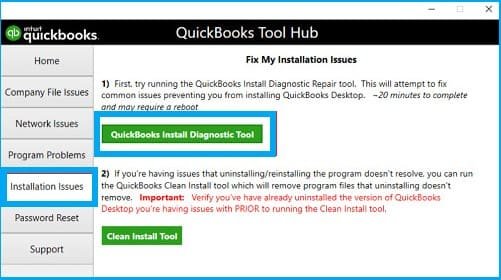
QuickBooks Install Diagnostic Tool, for example, is useful for identifying error codes. If you’re having trouble with QuickBooks 1904, you should start by running this tool. You’ll need QuickBooks Tool Hub to utilize it.
For a better understanding, an easy step-by-step guide is provided below. Please ensure to do the steps accurately

To learn more about the causes of QuickBooks error 1904, take a look below. Let us dig right into the reasons why this error code occurs.
I hope the above-mentioned information will help you fix the QuickBooks error 1904. However, if the registration is still failing in QuickBooks Desktop. QuickBooks error consultants are certified experts with years of experience and training. You can easily connect with the professionals by availing of the diverse communication modes.
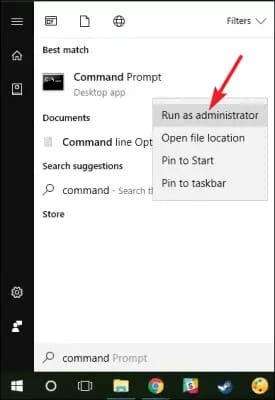
If any error occurs while the process is going on, you can carry out the exact steps but switch this one step wherein you have to enter “ net user administrator / active” instead of “net user administrator / active: yes”.
Yes, you can avail of the changing of the installation directory in the security settings. Here’s how to do it:
-First, Navigate to “C: Program FilesCommon Files.”
-Then, Right-click on the “Common Files” folder and choose the Properties tab.
Yes, you can avail of the changing of the installation directory in the security settings. Here’s how to do it:
● First, Navigate to “C: Program FilesCommon Files.”
● Then, Right-click on the “Common Files” folder and choose the Properties tab
● After the subsequent step, proceed to Select the Edit icon from the Security tab, then Users from the Group or user names icon.
● Next, Select the following permissions under the Permissions for Users tab:
– Now, List Folder Contents should be read and executed.
– Finally, click on the Apply and OK buttons.
If this is the arising case, two methods can be followed:
Examine permissions and utilize the secret (built-in) Administrator account
● First, Run the QuickBooks Install Diagnostic Tool after downloading it.
● Restart the computer and reinstall QuickBooks.

