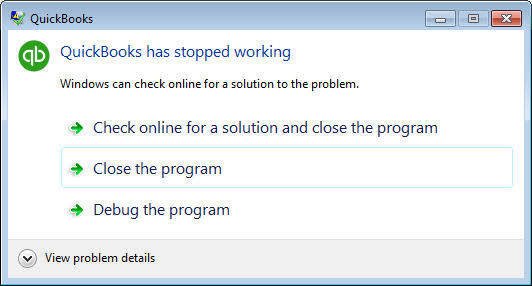
When you use QuickBooks Desktop, several issues can disrupt your work. Sometimes QuickBooks stops working, and you might see an error message stating that QuickBooks has stopped working.
Here’s what you might see on your system’s screen:
“QuickBooks has stopped working. A problem has caused QuickBooks to stop working correctly. Windows will close the program & notify you if a solution is available”
The QuickBooks Desktop program may freeze, and you won’t see any error message on the screen. When this happens, you won’t be able to continue working, and your productivity will decrease.
The good news is that there are several easy ways to fix this problem. This guide explains the main causes of freezing and provides step-by-step instructions to resolve the issue.
Possible Causes of QuickBooks Has Stopped Working
Understanding the reasons helps you apply the right fix. Some common causes include:
- Long company file names: Very long file names slow down operations and prevent access.
- Corrupted installation files: Over time, QuickBooks files can become damaged.
- Hard drive problems: Bad sectors on your drive can cause stored files to become corrupted.
- Windows problems: A faulty operating system can cause applications to become unresponsive.
- Corrupted company data: Essential documents in your company files become corrupted.
- QBWUSER.INI and EntitlementDataStore.ecml are examples of corrupted settings files.
- Outdated hardware: Your configuration does not meet the basic requirements for QuickBooks.
- Application conflicts: QuickBooks conflicts with other programs.
How to Fix the “QuickBooks Has Stopped Working Or Not Responding”
Try these methods in order. Always back up your company file before making changes.
Solution 1: Restart your computer
Close all programs, restart your computer, and open QuickBooks from scratch. This often fixes minor issues, like pressing the reset button on a malfunctioning remote.
Solution 2: Update QuickBooks
Outdated software can have bugs. Go to QuickBooks Desktop > Help > Update. Install the latest patches. This is like giving your car a tune-up to prevent breakdowns.
Solution 3: Disable antivirus software and add-ons
Extra tools can sometimes cause problems. Temporarily disable your antivirus software and any third-party plugins. Check QuickBooks. To identify the culprit, re-enable each one individually. Expert tip: You’ll feel a sense of relief when it runs smoothly!
Solution 4: Run Quick Fix My Program from the QuickBooks Tools Hub
Your QuickBooks any version such as 2010, 2011, … to 2022, 2023 and 2024 not responding or stopped working, fix this issue by running a Tool hub.
Step 1: Download and install the QuickBooks Tools Hub
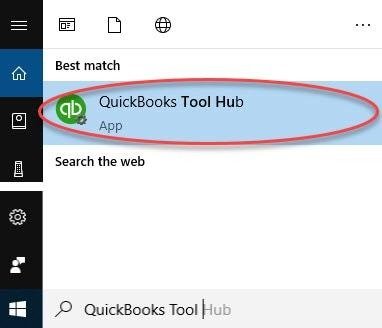
The QuickBooks Tool Hub helps in fixing common errors. To use the tool hub, you must close QuickBooks. We advise using Tool Hub on Windows 10, 64-bit, for the best experience.
- First, you have to close QuickBooks.
- Then you have to download the QuickBooks Tool Hub latest version (1.6.0.3).
- Save the file in a location where you can find it quickly, such as your Windows desktop or Downloads folder.
- Open the QuickBooksToolHub.exe file you downloaded.
- To install and accept the terms and conditions, you have to follow the on-screen instructions.
- Double-click the icon on your Windows desktop to launch the tool hub after the installation is complete.
Step 2: Launch Quick Fix My Program from the Tools Hub
Any open background processes that QuickBooks is using will be closed by Quick Fix. Your program will receive a quick repair
- You have to select Program Problems from the QuickBooks Tools Hub.
- Then you have to select Quick Fix my Program.
- Open your data file in QuickBooks Desktop after starting it.
Solution 5: End the QuickBooks Processes Running in the Background
- Press Ctrl + Shift + Esc to open Task Manager.
- Open the Details tab.
- End the following processes:
- QBW32.exe
- QBCFMonitorService.exe
- qbupdate.exe
- QBDBMgr.exe
- QBMapi32.exe.
- Right-click the QuickBooks icon and select Run as administrator.
Solution 6: Rename QBWUSER.INI & ECML Files
If the configuration files are corrupted:
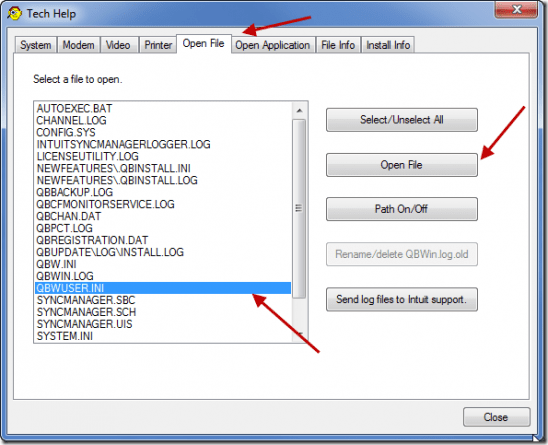
- Locate the QBWUSER.INI file (usually in the same folder as QuickBooks user settings). Rename it (for example, add “.old”). QuickBooks will recreate it.
- Similarly, rename the ECML file (if present). That resets some login or company file lists.
- Launch QuickBooks and open your company file manually (you may lose the “recent files” list, but data stays intact).
Solution 7: Run Verify/Rebuild Data
If the company file is corrupted:
- Open QuickBooks (if you can) without the company file or suppress opening.
- Go to File → Utilities → Verify Data to check for data issues.
- If it finds issues, go to File → Utilities → Rebuild Data. Accept the backup and let the repair run.
- After rebuilding, run Verify again and then open the company file.
Note: If QuickBooks cannot open at all, use QuickBooks File Doctor (via Tool Hub) to repair the company file.
Solution 8: Open QuickBooks in Safe Mode
This helps if the UI or company file opening is causing the crash:
- Hold the Ctrl key and double-click the QuickBooks desktop icon. Keep Ctrl held until you see the “No Company Open” window or a message.
- Use Alt + Open method: Open QuickBooks in the “No Company Open” window, press and hold Alt while selecting your company file to override saved window states.
- If it opens, disable “Save the desktop when closing” in preferences to avoid re-opening multiple windows that might crash.
Solution 9: Check and Repair Installation & Windows Components
- In Control Panel → Programs & Features → locate QuickBooks → choose Repair. This replaces damaged program files.
- Ensure all Windows system updates are applied; repair .NET Framework or Visual C++ as needed.
- If QuickBooks still fails, consider uninstalling and reinstalling (after making backups).
Solution 10: Move the Company File to a Different Location
- Copy the .qbw file and its associated .TLG/.ND files to a different folder (e.g., Desktop) and try opening from there.
- If it opens, the original location might have permission, path length, or disk issues.
Solution 11: Check Hosting and Network Permissions
In multi‑user or networked environments:
- Verify that only the host computer is set to Host Multi‑User Access; workstations should Stop Hosting.
- On the host, toggle off and back on the multi-user hosting.
- Ensure the folder containing the company file has full control permissions for all relevant users.
- Rename .ND and .TLG files (add .old) so QuickBooks recreates them.
- Repair the “Database Server Manager” on the host (if available).
Conclusion
The “QuickBooks has stopped working” error, along with issues like QuickBooks not responding when opening a company file, QuickBooks Desktop not starting, or QuickBooks won’t start and open, can all stem from program corruption, data file errors, or system conflicts. Most problems can be resolved using built-in tools like QuickBooks Tool Hub, company file utilities, and configuration resets. Start with basic fixes such as renaming INI files or using safe startup modes, and escalate to file repair or reinstallation if needed.
If the problem persists after applying all suggested solutions, our professionals can assist in diagnosing deeper system-level or data file issues. Expert support helps ensure your company’s data remains secure and accessible without delays.
Frequently Asked Questions
Q 1: What causes the “QuickBooks has stopped working” error on startup?
Ans: This error typically results from corrupted QuickBooks installation files, missing Windows components (like .NET Framework), damaged company files, or third-party conflicts such as antivirus software.
Q 2: Why is QuickBooks not responding when opening the company file?
Ans: This usually indicates a corrupted .qbw, .ND, or .TLG file, or an issue with the file’s location, access permissions, or multi-user settings. Try opening the file from a different location or with a renamed INI file.
Q 3: How do I fix it when QuickBooks Desktop doesn’t start at all?
Ans: Use the QuickBooks Tool Hub to run “Quick Fix My Program” or “Install Diagnostic Tool.” Also, try suppressing QuickBooks during startup by holding Ctrl when launching.
Q 4: What should I do if QuickBooks won’t start or open even after reinstalling?
Ans: Check for system-wide issues such as user profile corruption, disk errors, or unsupported OS versions. If the issue persists, contact QuickBooks technical support for help with system-level repairs or deep data analysis.
Q 5: Will I lose my data if QuickBooks crashes during startup?
Ans: No, the company data is stored in separate files (.qbw). Crashes usually affect the program, not the data file. However, always keep regular backups to avoid any risk.
Q 6: Can antivirus software cause QuickBooks to stop working?
Ans: Yes, some antivirus or firewall settings can block QuickBooks components. Add QuickBooks folders and executables to your antivirus exclusion list to prevent interference.
Q 7: What tool can I use to repair QuickBooks installation issues?
Ans: Use QuickBooks Tool Hub, which includes diagnostic utilities like Quick Fix My Program, Install Diagnostic Tool, and File Doctor.
Q 8: Is there a way to prevent these startup issues in the future?
Ans: Yes. Regularly update QuickBooks and Windows, avoid forced shutdowns, maintain antivirus exclusions, and always close company files properly before exiting the application.