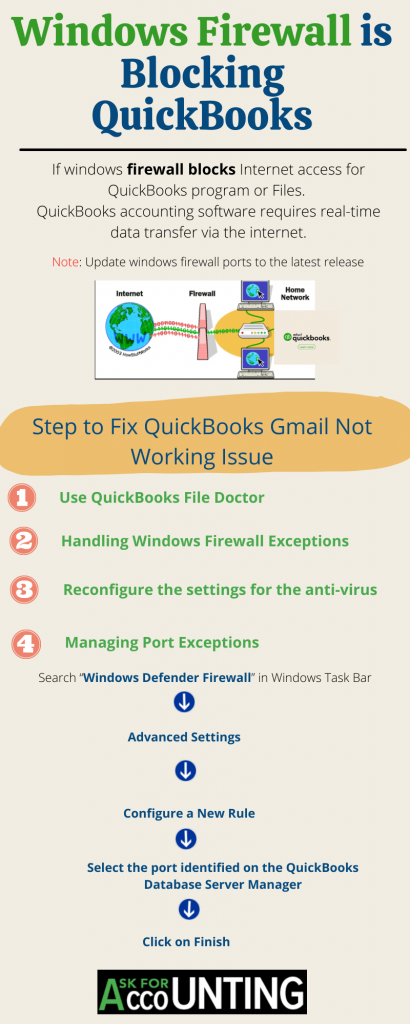
QuickBooks encounters so many technical and functional errors, network connectivity is one major reason for technical errors. There are unfriendly times when a Windows firewall is blocking QuickBooks connection to the network for QB services. The QuickBooks connectivity errors are defined with specific codes such as:
These error codes are encountered by QB users frequently due to the firewall blocking your connection. At times it is very difficult to identify errors caused by the Windows firewall. Even the QuickBooks file doctor tool fails to diagnose these errors. To remove the firewall blockage the users need to follow the below-mentioned steps.
After observing the numerous reports from multiple users, we come to know about the most probable reasons why the issue arises. The reasons can be:
● Closed Ports: This error occurs when the machine fails to forward the ports that the program uses to connect to the internet. For the application to function properly, the user must forward the application’s relevant ports. Unlike many other applications, QuickBooks does not use a wide variety of ports. Instead of depending on the version of the software that you’re using, it uses a particular port.
● Blocked in Firewall: The application itself may have been disabled by the Windows Firewall in some cases. It’s also likely that a third-party antivirus program has permanently blocked the application.
Allowing the QuickBooks services will make sure that Windows allows all the selected components through the Windows firewall. All the components are not registered by Windows on the system. This crops up the issue as the individual services installed along with QuickBooks still cannot be allowed through the firewall.

Follow the above steps to troubleshoot the Windows firewall is blocking QuickBooks issue.
If you are seeing the message “Windows firewall is blocking QuickBooks” more than often then you can try turning off these firewalls.
Follow the steps given below to disable the Windows firewall:
Sometimes users must change the Inbound and Outbound rules found in QuickBooks. This can be done by following the steps given below.
To configure the firewall manually you have to do any of the one processes out of these two processes:-
Add the firewall port exception for the QuickBooks
If you have multiple versions of QuickBooks on the same computer then do this process for each version.
Create Windows exceptions for QuickBooks Programs
QuickBooks is using .exe files to perform the tasks so follow the steps to create the exception for each file that is available on the table.
You have to check your settings of antivirus in case you have already set the firewall but it is still creating issues. Check that the general permissions of QuickBooks are not blocked.
Hope you now have a clear understanding of what kind of error Windows firewall is blocking QuickBooks issue and where to look for a quick fix. If you need any further assistance then, you can contact the QuickBooks error support number. The Consultant team can be reached by toll-free phone, email, or live chat option.
Firewall misconfiguration problems are typically resolved by handling firewall exceptions, which can be set specifically for QuickBooks. This may be set for the program’s ports, executable files that may be blocked by Windows, or anti-virus software that may be bypassing applicable rules.
Since the Windows Firewall can often block the application completely even though the ports are available, the QuickBooks software must have an exception in the Firewall. As a result, you’ll need to add the QuickBooks program to the Firewall’s exceptions to fix Windows Firewall is Blocking QuickBooks:
● Go to the Windows Taskbar and In the search box, look for the Windows Defender Firewall
● Go to the Advanced Settings and configure a New Rule for both Inbound and Outbound Rules
● Choose the port verified on the QuickBooks Database Server manager
● At last, click on the Finish tab.
Users may need to reconfigure the settings for their anti-virus program in unusual circumstances. QuickBooks may have been one of the applications that unintentionally revoked general permissions for such applications. Unfortunately, handling anti-virus settings for various systems does not have a one-size-fits-all approach. However, regardless of anti-virus software, the basic concept of ensuring that the ports used by QuickBooks are available and that the executable files are not blocked remains the same.
Regularly update QuickBooks Desktop and review firewall settings, always make sure they remain configured correctly. Also, consider using a reliable backup solution for your company file to avoid any data loss in case of firewall or connectivity issues.